How to take notes on a Kindle (and make them worth rereading)
How to add, find and edit notes on a Kindle e-reader and in the Kindle app, plus a few habits that turn quick notes into ones worth rereading.
· 3 min read
In short
- On a Kindle e-reader, select a passage by holding and dragging, choose Note, type and save.
- In the Kindle app it works the same way: select the text and tap Note. A book's notes are collected in its notebook.
- Short notes that say why a passage matters are the ones you will be glad to find later.
On this page (6)
A highlight says “this matters”. A note says why, and that is usually the part you want to know when you come back to a passage months later. Kindle makes notes easy to add, if a little fiddly to type, and keeps them right beside the text they belong to.
This guide covers the how, on the e-reader and in the app, and then the more interesting question of what to write.
Adding a note on a Kindle e-reader
- Press and hold the first word of the passage until it is selected.
- Without lifting your finger, drag to the end of the passage, then let go.
- In the menu that appears, tap Note.
- Type your note on the keyboard and tap Save.
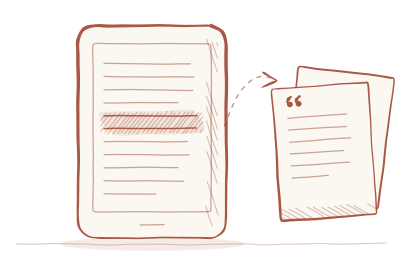
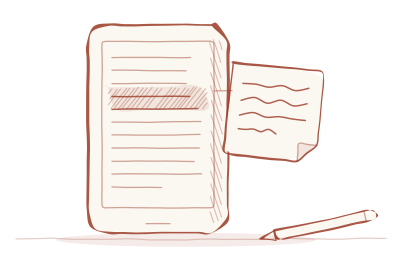
The passage is highlighted and the note is attached to it; a small number or icon in the text marks where it is. To add a note to a passage you highlighted earlier, tap the highlight and choose Note from the same menu.
Adding a note in the Kindle app
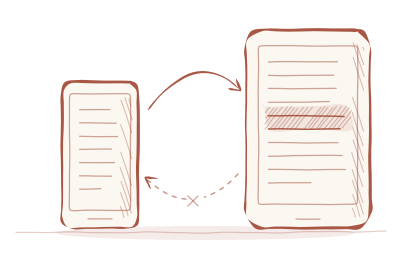
On a phone or tablet the steps are nearly the same: press and hold to select, drag the handles to cover the passage, tap Note, type and save. Typing on a phone keyboard is quicker than on an e-reader, which makes the app a good place for longer notes, even for books you are reading on your Kindle. Notes sync between the two.
If you have a Kindle Scribe, you can also write by hand with its pen. Everything below applies to typed notes, which every Kindle and the app support and which travel with your highlights.
Finding your notes again
There are three places to look:
- In the book: open the menu at the top and choose the notebook, which lists the book's highlights and notes in order. Tap one to jump to it.
- In the app: the notebook icon in a book's menu shows the same list, with filters for highlights and notes.
- In your browser: the Kindle notebook at read.amazon.com/notebook lists every book, with each note under its highlight.
To get them out of Amazon altogether, see how to export your Kindle highlights and notes.
Editing and deleting notes
Tap the note marker in the text, or the note in the notebook, and choose Edit or Delete. Edits sync like new notes. If you delete a highlight that has a note, check afterwards that the note went with it, or whether you still want it.
What makes a note worth rereading
Most notes are written in a hurry, and most of them say too little to mean anything later. “Good point” is a note to your present self. Write for the person who will meet the passage again in a year. A few kinds of notes age well:
- Why it matters: “This is exactly what went wrong in the spring project.”
- A connection: “Same idea as in Thinking, Fast and Slow, chapter 2.”
- A question: “Is this true outside big companies?”
- A disagreement: “No. Counterexample: my grandmother.”
- Something to do: “Try the two-list method on Monday.”
Making typing less of a chore
The e-reader keyboard is slow, so keep notes there to a few words and expand them later in the app, where typing is easier. A handful of personal shorthands help: a question mark for doubt, an exclamation mark for surprise, a short word like “work” or “try” for notes you want to find by searching.